Deploy Decky AI from the
Microsoft 365 Admin Center.
A 15-minute walkthrough for IT administrators. Upload the Decky AI manifest as a custom Integrated App, assign your users, and the add-in shows up in PowerPoint for everyone in scope.
Already have the manifest? Skip to Step 3, the upload.
Before you start
what you need in place.
Decky AI is deployed as a standard Office add-in via the Microsoft 365 admin center. There is nothing to install on user devices, no MSI to push through Intune, and no firewall changes for inbound traffic.
Admin role
Global Administrator on admin.microsoft.com. Other admin roles can manage existing Integrated apps but cannot upload new ones.
Manifest file
The deckyai.manifest.xml file we send you by email when your enterprise plan starts.
Microsoft 365 licence
Business Basic / Standard / Premium or Enterprise E3 / E5 – any plan that includes the PowerPoint desktop app on Windows or macOS.
Network
Outbound HTTPS to *.decky-ai.com and apim-decky-backend.azure-api.net. No inbound firewall changes required.
Org admin role (optional)
To let a colleague manage the organisation-wide style guide, assign them the Decky.OrgAdmin app role in Microsoft Entra ID. Everyone else can still manage their own personal rules.
Slide Library admin role (optional)
To let a colleague publish, edit, and delete organisation-wide slides in the Slide Library, assign them the Decky.SlideLibraryAdmin app role in Microsoft Entra ID. Org admins automatically have this capability too.
From manifest to PowerPoint
in seven clicks.
Each step matches a real screen in the Microsoft 365 admin center. Follow them in order – the whole flow takes about fifteen minutes.
-
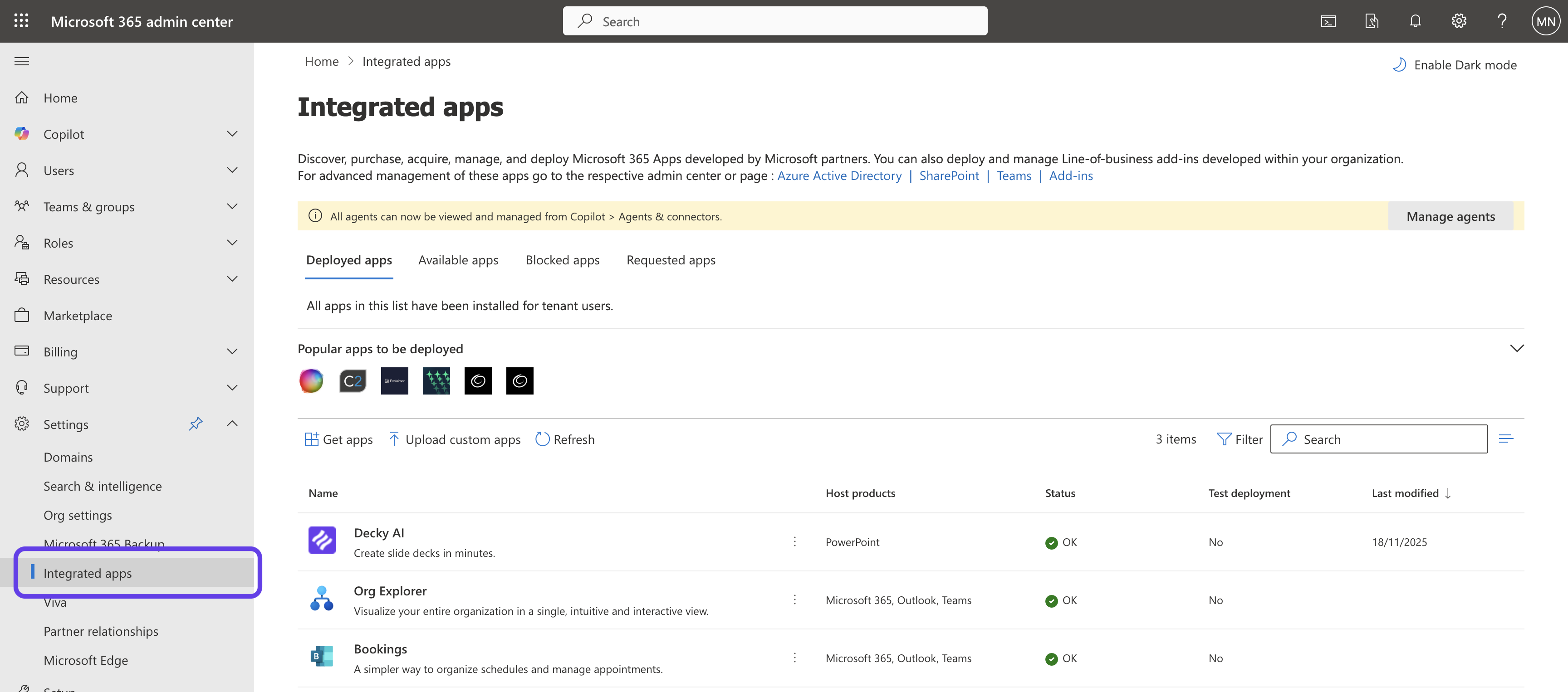
Open Integrated apps in the Admin Center
Sign in to admin.microsoft.com with a Global Administrator account, then navigate to Settings → Integrated apps. This is the central place where Microsoft 365 admins deploy Office add-ins, Teams apps, and other integrated experiences across their tenant.
Admin tipIf you don't see Integrated apps, you're likely signed in with a non-admin or scoped-admin role. You need Global Administrator to upload custom apps.
-
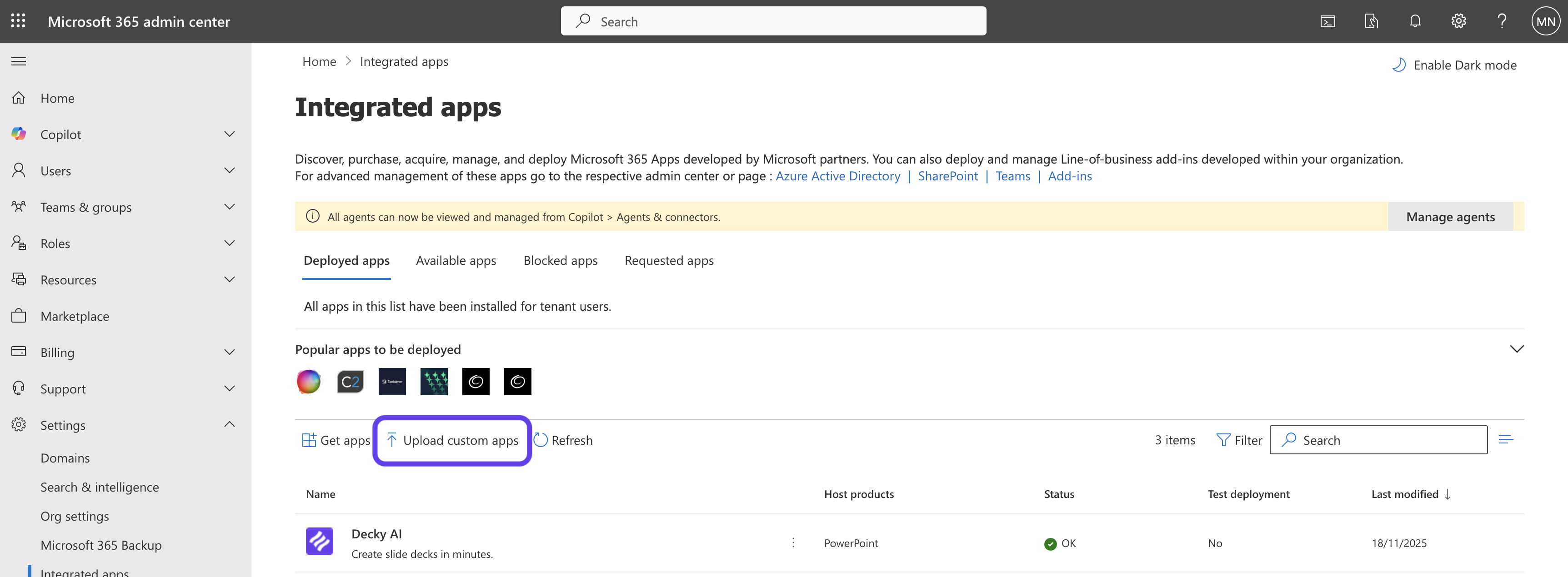
Upload the Decky AI custom app
Click Upload custom apps at the top of the Integrated apps page. Choose Office add-in as the app type and pick Provide link to manifest file or Upload manifest file – we'll send you the XML directly, so the upload option is the right one.
Admin tipThe manifest is a small XML file. It only describes where the add-in lives and which permissions it asks for – it does not contain code or any of your data.
-
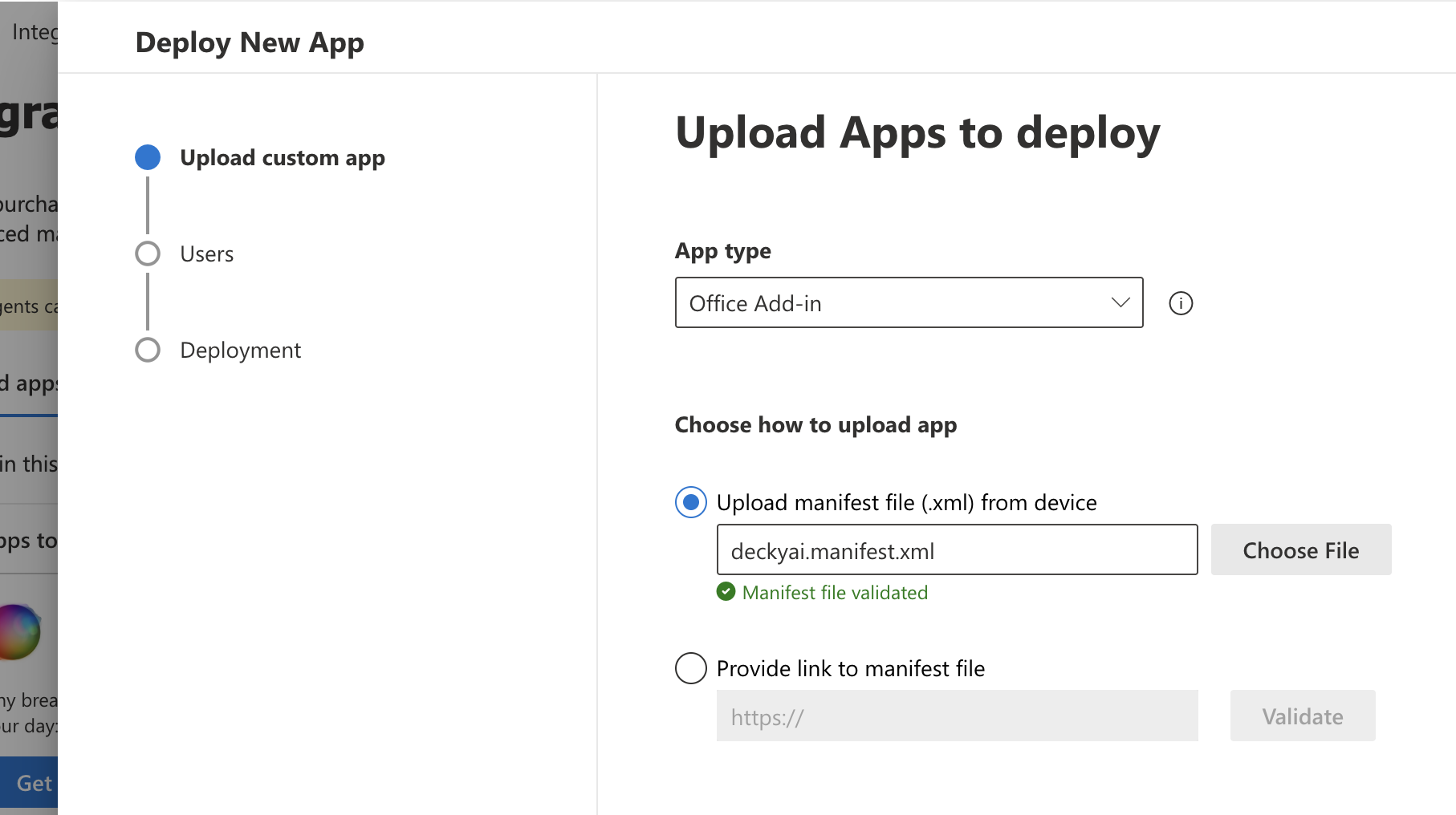
Upload the Decky AI manifest XML
Drop the manifest file we sent you (deckyai.manifest.xml) into the upload area. The admin center validates the XML and shows the add-in's name, publisher, and the URL it loads from. Confirm the details match Decky AI / Maven Labs UG and continue.
Admin tipNeed a fresh copy of the manifest? Reply to your onboarding email or write to hello@decky-ai.com and we'll resend it within the hour.
-
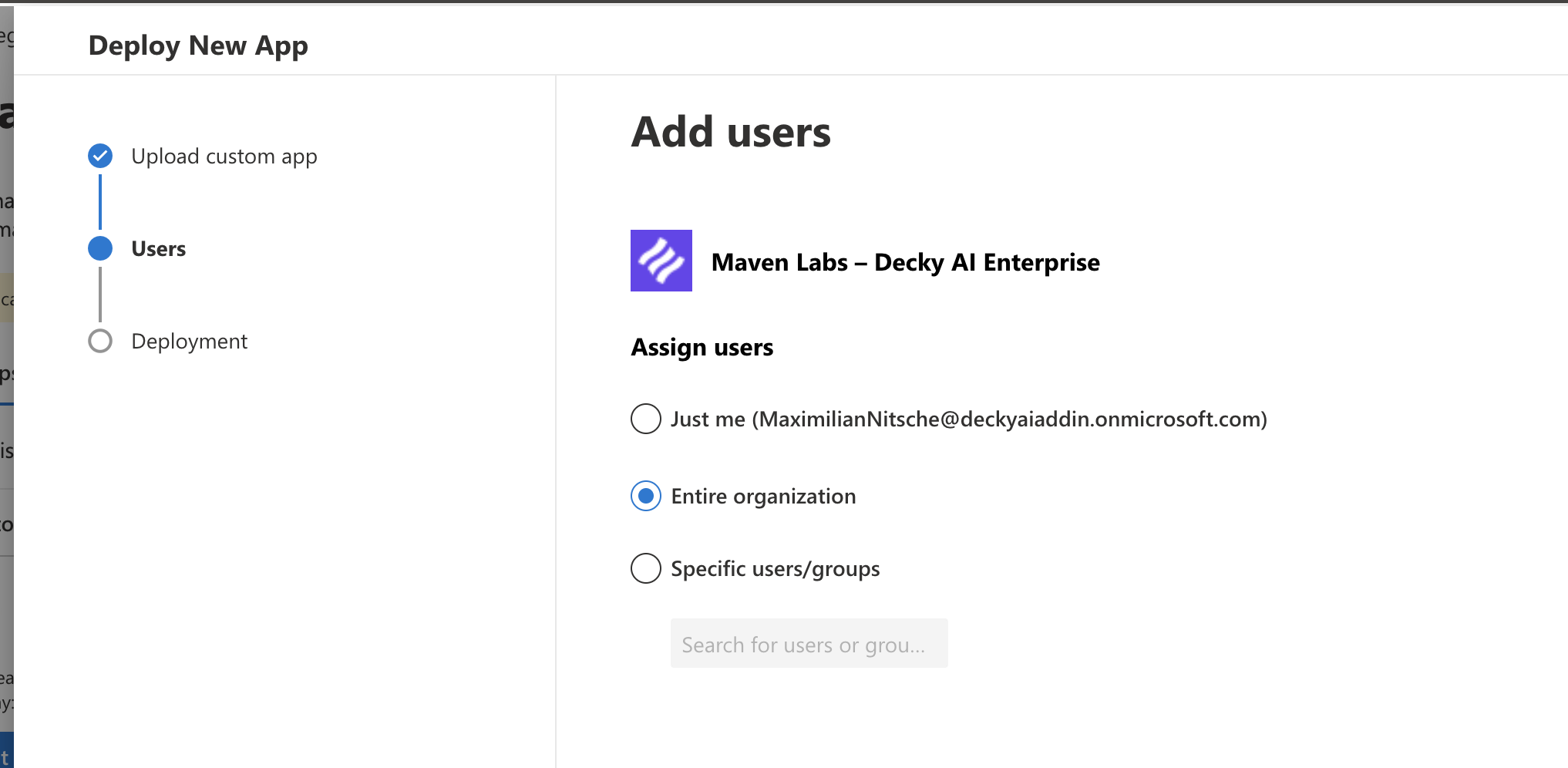
Roll it out to your organisation
Decide who gets Decky AI: the entire organisation, a specific Microsoft 365 group, or a list of individual users. Most customers start with a pilot group of consultants and expand once feedback is in. You can change the assignment any time later from the same screen.
Admin tipGroup-based assignment uses your existing Microsoft 365 groups, so you can wire Decky AI into your normal joiner / leaver process without a separate licence list.
-
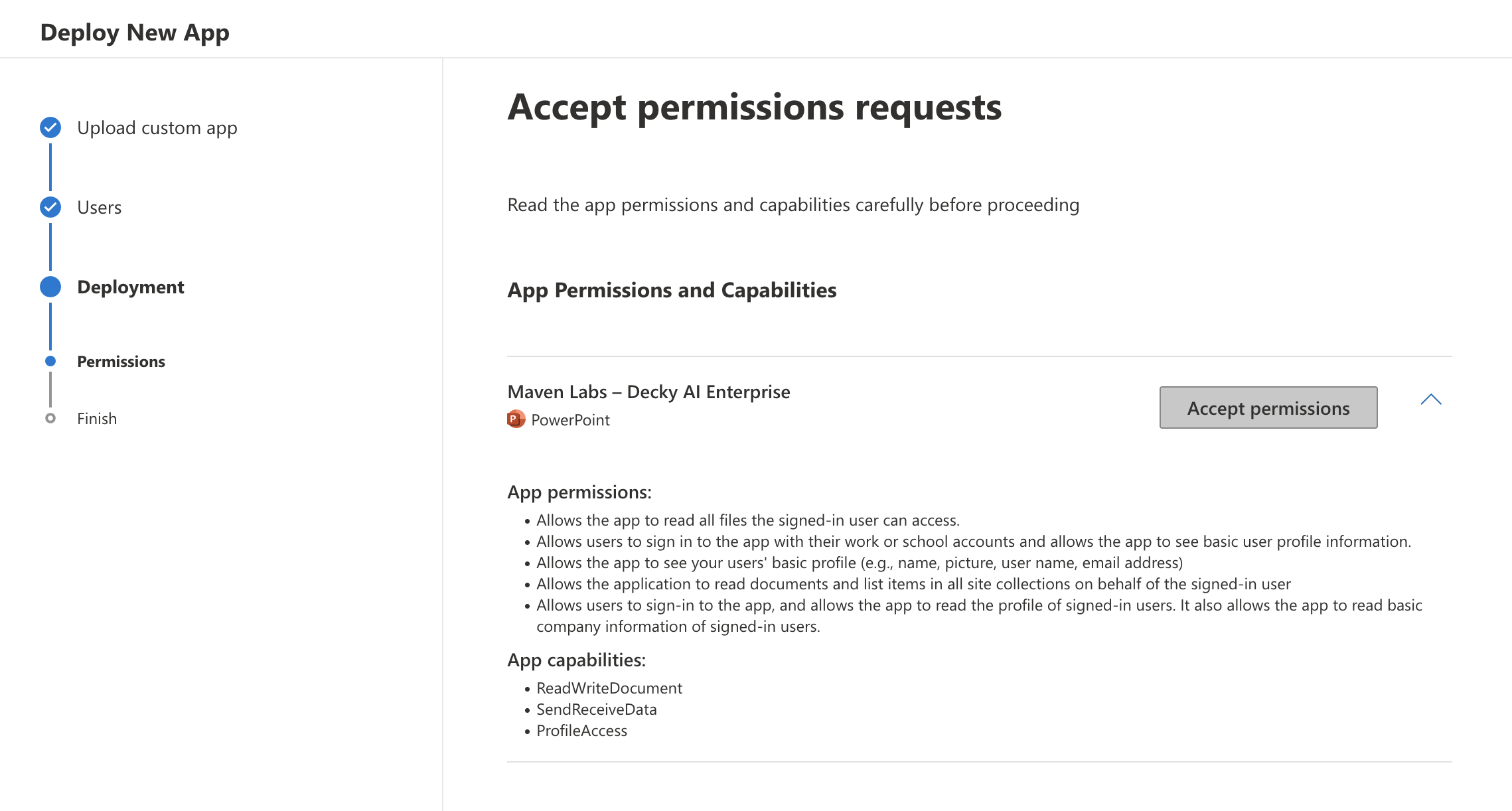
Accept the permissions on behalf of your tenant
The wizard shows the exact permissions the add-in requests – typically read access to the active document so Decky AI can edit the slide your user is working on. Review them, then click Accept permissions to grant admin consent for everyone in scope.
Admin tipThis is standard Office add-in admin consent. It does not give Decky AI background access to your tenant – the add-in only runs while a user has it open in PowerPoint.
-
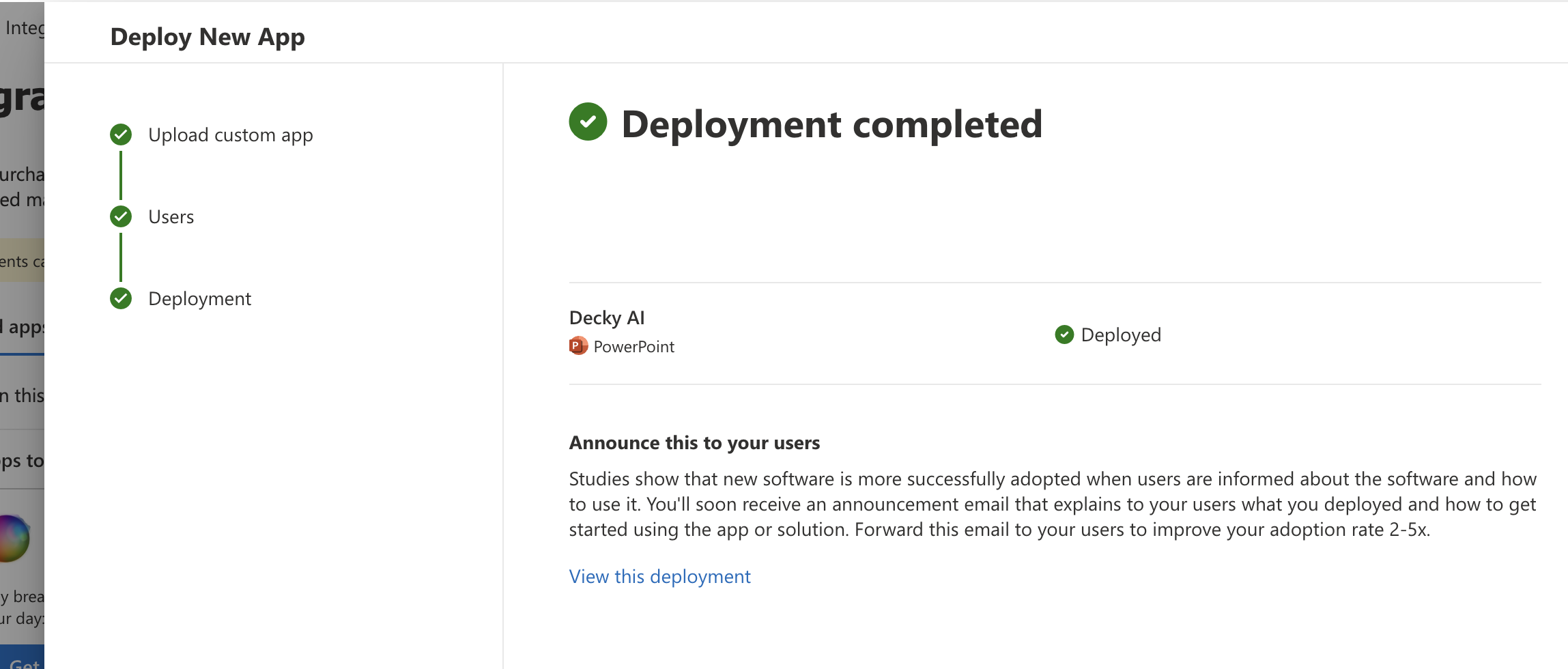
Confirm the deployment
Review the summary – app name, assigned users, permissions – and click Finish deployment. The admin center queues the rollout and shows a confirmation when it's done. The add-in is now part of your tenant.
Admin tipMicrosoft typically propagates centrally deployed add-ins within a few hours, but it can take up to 24 hours to appear for every user.
-
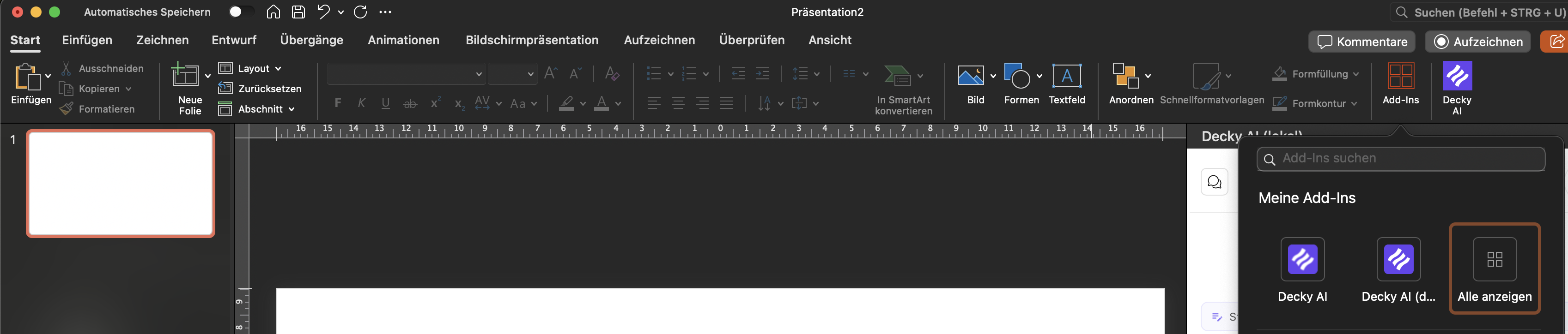
Open PowerPoint and use Decky AI
Once the rollout has propagated, your assigned users will see a Decky AI button in the PowerPoint Home ribbon. Clicking it opens Decky AI as a side pane next to the slide. From there, users sign in with their Microsoft 365 account – no separate password – and can start working.
Admin tipIf Decky AI doesn't appear yet, ask the user to fully close and reopen PowerPoint. Centralised add-ins load on app start.
After the rollout
Propagation time
Centrally deployed add-ins typically appear in PowerPoint within a few hours and always within 24 hours.
User sign-in
Users sign in with their existing Microsoft 365 account on first launch. No separate password, no IdP changes.
Change assignment
Add or remove users at any time from Settings → Integrated apps → Decky AI → Users.
Assign your
Decky AI admin roles.
Decky AI has two levels of rules. Every user can write their own personal rules (tone, formatting, language preferences). A nominated organisation admin can additionally edit the shared style guide — brand colours, fonts and wording conventions that apply to everyone in your tenant. Separately, a Slide Library admin can publish, edit, and delete organisation-wide slides in the shared Slide Library. Both roles are controlled by Microsoft Entra ID app roles — not by anything inside Decky AI. Org admins automatically have Slide Library admin capabilities too.
How to grant the Decky.OrgAdmin role
- Open the enterprise appIn the Microsoft Entra admin center (entra.microsoft.com), go to Identity → Applications → Enterprise applications and open Decky AI.
- Add the assignmentSelect Users and groups → Add user/group, then pick the user or Microsoft 365 group that should manage the shared style guide.
- Choose the Decky Org Admin roleUnder Select a role, choose Decky Org Admin (the Decky.OrgAdmin app role) and confirm with Assign. Org admins can also manage the Slide Library — no second role needed.
- Ask them to sign in againThe role is carried in the user's Microsoft 365 token, so they need to sign out and back in to Decky AI (or wait for the next token refresh) before the style-guide editor unlocks.
Keeping admin rights in Entra means assignment stays self-service for your IT team and flows through your normal joiner / leaver process. Decky AI never stores a separate privilege flag — it simply trusts the signed role claim Microsoft puts in the user's token.
How to grant the Decky.SlideLibraryAdmin role
Follow the same steps as above — open the Decky AI enterprise app in the Microsoft Entra admin center,
add the user or group, and this time choose Decky Slide Library Admin as the role.
Users with this role can publish, edit, and delete organisation-wide slides and collections in the shared Slide Library.
Users with Decky.OrgAdmin automatically have these capabilities too — no second assignment needed.
Assign Decky.SlideLibraryAdmin to a team that curates shared slides (e.g. your brand or knowledge-management team)
without giving them full org-admin access to the style guide.
What your tenant
is signing up to.
Decky AI is architected so that slide content stays in the user's PowerPoint session. The add-in does its OOXML processing locally in the browser; only tool inputs (web search queries, image prompts, icon searches) reach our backend, and those never carry client-confidential slide content. The one exception is the optional Slide Library: when a user explicitly saves a slide to reuse later, that slide is stored privately for your organisation, can be deleted at any time, and is never used to train AI models.
- Slides a user saves to the Slide Library are stored privately for your organisation, can be deleted at any time, and are never used to train AI models
- On the team plans, model providers keep no copy of prompts or outputs (zero data retention), and processing runs in the region you choose, the EU or the US
- Manifest-based deployment – no agent on user devices, no inbound firewall changes
- Remove Decky AI for everyone in one click from the same Integrated apps screen
Troubleshooting
01I uploaded the manifest but Decky AI doesn't appear in PowerPoint.
02The admin center says my manifest is invalid.
03Can I deploy to a pilot group first?
04How do I remove the add-in?
05A colleague can't edit the organisation style guide.
06A colleague can't publish slides to the organisation Slide Library.
Get a personal demo.
Talk to our sales team.
See how Decky AI builds decks that meet consulting standards – on your firm’s template, structured, aligned and ready for the client.